Ever found yourself in a time crunch, wondering if it’s 2 PM or 14:00? If so, you’re not alone. Many people struggle with the 12-hour clock, especially when military time comes into play. But fear not, because switching your iPhone to military time is as easy as pie—if pie were made of buttons and settings instead of deliciousness.
Understanding Military Time
Military time operates on a 24-hour clock format, eliminating any confusion between AM and PM. This system enhances clarity in timekeeping, especially in situations requiring precision, such as in the military or aviation.
What Is Military Time?
Military time refers to a timekeeping system that counts hours from midnight to midnight, using a 24-hour format. For instance, 1 PM converts to 1300 hours, while 11 PM becomes 2300 hours. In practice, the hour indicator ranges from 00 to 23, allowing for straightforward calculations without the need for AM or PM labels.
Benefits of Using Military Time
Using military time comes with several advantages. First, it reduces ambiguity in time interpretation, particularly in global communications. Next, it aligns with international standards, making it widely recognized and understood. Lastly, this system simplifies scheduling, as adding and subtracting hours becomes easier. Adopting military time can enhance efficiency in various organizational settings, ensuring all parties remain on the same page.
Changing Time to Military on iPhone
Changing the time format on an iPhone to military time is a straightforward process that enhances time clarity. Users can follow a few simple steps to make this adjustment easily.
Accessing Settings
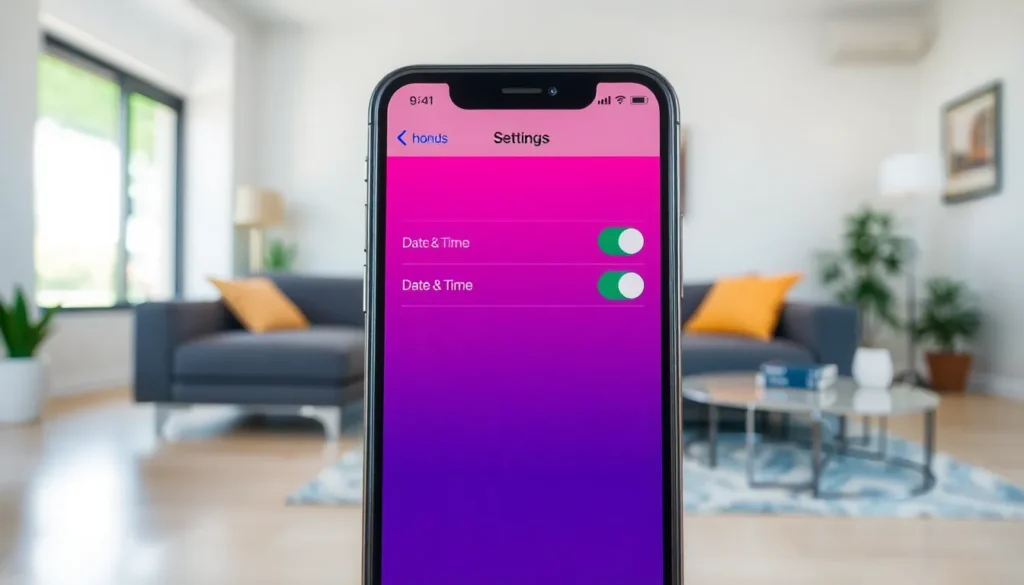
To begin, open the Settings app on the iPhone. Tap on the “General” option located in the menu. Select “Date & Time” next to other options like Keyboard and Language. This section contains all time-related settings, where the user can make necessary adjustments.
Adjusting Date & Time Settings
In the Date & Time settings, locate the “24-Hour Time” toggle. When this toggle is switched on, the iPhone automatically changes to military time. Users can check for proper adjustments by observing the time displayed on the device’s home screen. This enhancement ensures that AM and PM distinctions aren’t a concern anymore.
Customizing Your Experience
Adjusting your iPhone to display military time enhances usability and clarity. Utilizing a 24-hour clock format eliminates confusion, making it ideal for professionals in various fields.
24-Hour Time Format
Military time operates on a straightforward 24-hour format. Users can convert standard times, like 1 PM, into 1300 hours without ambiguity. The settings are intuitive, allowing for easy adjustments in the Date & Time section. By activating the “24-Hour Time” toggle, the clock instantly updates, ensuring all time displays align with military standards. Each hour from midnight to noon appears as is, while 1 PM through 11 PM gets reflected in a concise format. This system facilitates effective time management, especially in industries that require precision.
Additional Clock Options
Apple provides several additional clock options to enhance user experience. Users may adjust their iPhones to show time zones, making travel more manageable. Notification features can also be customized to ensure reminders align with military time standards. Utilizing alarms and timer functions has never been easier with military time. Each function operates seamlessly alongside the 24-hour format, providing a cohesive experience. Overall, these options cater to individual needs, reinforcing the iPhone’s adaptability for diverse use cases.
Troubleshooting Common Issues
Users may encounter some challenges when changing their iPhone to military time. First, it’s crucial to ensure that the 24-Hour Time option is activated correctly in the Date & Time settings. If military time doesn’t display after toggling the setting, restarting the device could resolve any temporary glitches. Also, certain regional settings might affect time formats. If set to a region that prefers a 12-hour clock, the changes may not take effect.
Restoring default settings on an iPhone can help resolve persistent issues. Navigate to Settings and scroll down to General. After this, select Transfer or Reset iPhone and tap Reset All Settings. Note that this action will not delete personal data, but it will reset network settings, location settings, and privacy settings. After restoring defaults, users should reapply the military time setting under Date & Time. This method often fixes many configuration-related problems.
Switching an iPhone to military time is a simple yet effective way to enhance time clarity and usability. By utilizing the 24-hour format users can eliminate confusion between AM and PM making it particularly beneficial for professionals in fields that demand precision.
The straightforward steps outlined ensure that anyone can easily make this adjustment. With the added features offered by Apple users can further customize their time settings to fit their needs. Embracing military time not only streamlines scheduling but also aligns with international timekeeping standards.
Overall this adjustment can significantly improve efficiency and time management in both personal and professional settings.